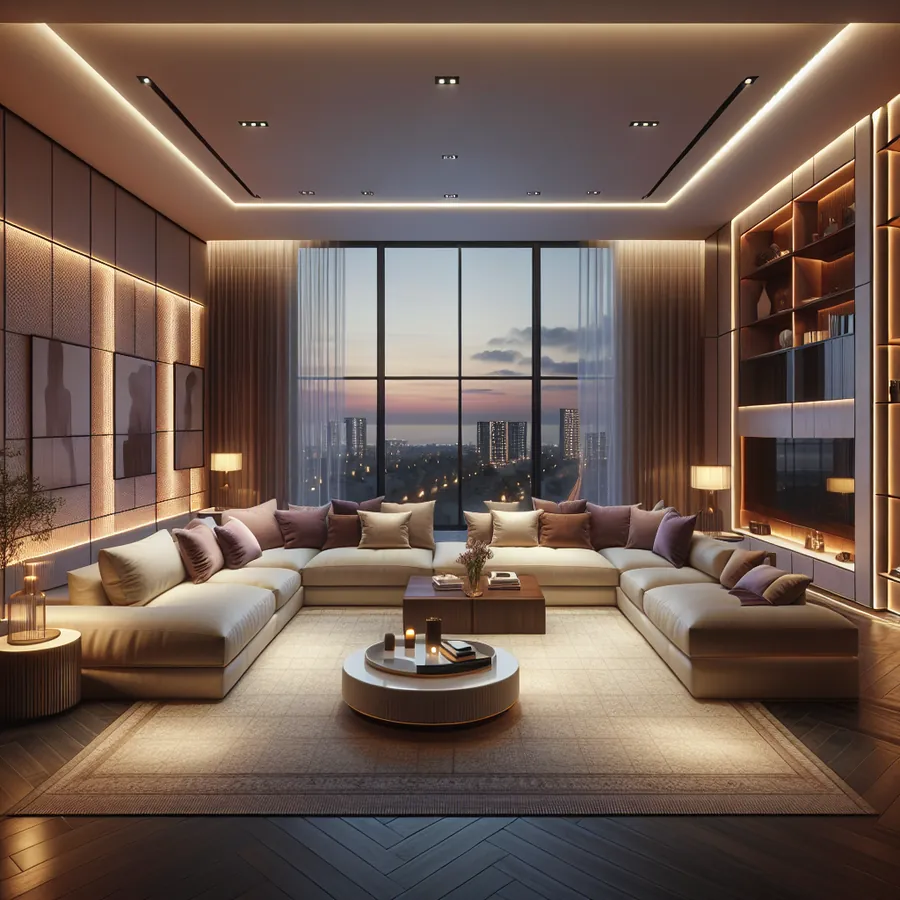
Control4 Lighting Scene Programming Pro Tips: Master-Level Techniques for Stunning Automation
There's a moment every Control4 owner experiences—that first time you press a single button and watch your entire home transform. Lights dim to the perfect level, shades descend gracefully, and suddenly your living room becomes a private cinema. But here's what separates a good Control4 installation from an extraordinary one: the programming behind those scenes.
After years of working with premium automation systems—including extensive experience as Lutron HomeWorks dealers—we've learned that lighting scene programming is both an art and a science. The difference between amateur and professional-grade scenes often comes down to subtle techniques that most installers never share. Today, we're changing that.
Why Lighting Scenes Matter More Than You Think
Lighting scenes aren't just about convenience. They fundamentally change how you experience your home. Research consistently shows that proper lighting affects mood, productivity, and even sleep quality. When programmed correctly, Control4 scenes can:
- Reduce energy consumption by 20-40%
- Enhance home security through presence simulation
- Improve circadian rhythm alignment
- Increase property value and appeal
- Create memorable experiences for entertaining
The key is understanding that scenes should feel invisible—they should anticipate needs rather than require constant adjustment.
Compatible Lighting Hardware for Control4 Scenes
Before diving into programming techniques, let's establish which hardware plays nicely with Control4's scene capabilities. Not all lighting products are created equal, and compatibility directly impacts what's possible in your programming.
Native Control4 Lighting Products
| Product | Scene Support | Dimming Range | Best Use Case |
|---|---|---|---|
| Control4 Adaptive Dimmer | Full | 1-100% | Primary living spaces |
| Control4 Keypad Dimmer | Full | 1-100% | Bedrooms, offices |
| Control4 Switch | On/Off Only | N/A | Closets, utility rooms |
| Control4 Fan Speed Controller | 4-Speed | N/A | Ceiling fans |
| Control4 Outlet Dimmer | Full | 1-100% | Table lamps, accent lighting |
Third-Party Integration Compatibility
| Brand | Protocol | Scene Integration | Fade Support | Notes |
|---|---|---|---|---|
| Lutron HomeWorks QSX | IP/RS232 | Excellent | Yes | Premium choice for large estates |
| Lutron RadioRA 3 | IP | Excellent | Yes | Mid-range residential |
| Lutron Caseta Pro | IP | Good | Limited | Budget-friendly option |
| Philips Hue | IP/Zigbee | Good | Yes | Color scenes possible |
| Ketra | IP | Excellent | Yes | Tunable white, premium |
| DMX Fixtures | DMX | Full | Yes | Architectural lighting |
| KNX Devices | KNX/IP | Good | Varies | European installations |
Pro Tip: As experienced HomeWorks dealers, we often recommend hybrid systems for luxury homes. Control4 handles the automation brain while Lutron HomeWorks manages the actual lighting loads. This combination delivers unmatched reliability and the smoothest dimming curves available.
Step-by-Step Scene Programming Guide
Step 1: Audit Your Lighting Zones
Before touching Composer Pro, document every lighting load in your home. Create a spreadsheet with:
- Room name
- Fixture type (recessed, pendant, sconce, etc.)
- Bulb type and wattage
- Dimming capability
- Primary use case
This audit prevents the common mistake of creating scenes that include incompatible fixtures or inappropriate dimming levels for certain bulb types.
Step 2: Define Your Scene Categories
Professional programmers organize scenes into logical categories:
Time-Based Scenes
- Morning Wake
- Daytime Bright
- Evening Relax
- Nighttime Sleep
Activity-Based Scenes
- Cooking
- Dining
- Movie Watching
- Reading
- Entertaining
Mood-Based Scenes
- Romantic
- Energizing
- Calm
- Focus
Step 3: Master the Fade Time Formula
Here's a technique most installers miss: fade times should vary based on the magnitude of change and the context.
The Professional Fade Time Formula:
- Small adjustments (10-20% change): 0.5-1 second
- Medium adjustments (20-50% change): 2-3 seconds
- Large adjustments (50%+ change): 4-6 seconds
- Dramatic effect scenes: 8-15 seconds
- Wake-up scenes: 15-30 minutes (gradual sunrise simulation)
Never use instant transitions except for emergency or security scenarios. The human eye perceives instant changes as jarring, while gradual fades feel natural and luxurious.
Step 4: Implement Conditional Logic
Advanced scenes respond to context. In Composer Pro, use conditional programming to create intelligent behavior:
When: "Movie" scene activated
If: Time is after sunset
Then: Set living room to 5%, close shades
Else: Set living room to 15%, close shades halfway
This ensures your movie scene works perfectly whether it's a Sunday afternoon or Friday night.
Step 5: Create Scene Sequences
Single-button scenes are good. Scene sequences are exceptional. Program your keypads to cycle through related scenes with repeated presses:
Press 1: Bright (100%) Press 2: Medium (60%) Press 3: Dim (30%) Press 4: Accent Only (specific fixtures at 20%)
This gives users intuitive control without overwhelming them with buttons.
Step 6: Program Intelligent Defaults
Every room should have a "smart default" that activates when someone enters or turns on lights without selecting a specific scene. Program these defaults to consider:
- Current time of day
- Day of week (weekday vs. weekend)
- Occupancy patterns
- External light levels (if you have light sensors)
Advanced Techniques for Premium Installations
Tunable White Integration
If your installation includes tunable white fixtures (Ketra, USAI, or similar), program color temperature shifts throughout the day:
| Time | Color Temperature | Intensity |
|---|---|---|
| 6:00 AM | 2700K (warm) | 30% |
| 9:00 AM | 4000K (neutral) | 80% |
| 12:00 PM | 5000K (cool) | 100% |
| 6:00 PM | 3500K (warm neutral) | 70% |
| 9:00 PM | 2700K (warm) | 40% |
| 11:00 PM | 2200K (very warm) | 15% |
This circadian-aligned programming supports natural sleep-wake cycles and has become a hallmark of truly premium installations.
Presence Simulation for Security
Create a "Vacation" mode that randomly activates different lighting scenes throughout the evening hours. The key is randomization—predictable patterns are easily spotted by potential intruders.
Program 15-20 different scene variations with random delays between 20-45 minutes. Include occasional "mistakes" like a bathroom light turning on briefly at 2 AM—these imperfections make the simulation convincing.
Integration with Shade Control
Lighting scenes should never exist in isolation. Always coordinate with motorized shades:
- Morning scenes: Open shades first, then adjust lights
- Evening scenes: Adjust lights first, then close shades
- Movie scenes: Close shades completely before dimming
The sequencing matters. Closing shades while lights are bright creates a claustrophobic feeling, while dimming first feels intentional and comfortable.
The Future: AI-Enhanced Lighting Scenes
The smart home industry is rapidly evolving, and AI integration represents the next frontier for lighting automation. Here's what's coming—and what you can prepare for today.
Machine Learning Adaptation
Future Control4 updates will likely include machine learning algorithms that observe your behavior and automatically adjust scenes. Imagine a system that notices you always bump the kitchen lights up 10% while cooking and automatically incorporates that preference.
Voice-Activated Scene Modification
Beyond simple "turn on movie mode" commands, next-generation voice control will allow natural modifications: "Make it a little warmer" or "I need more light for reading" will trigger intelligent adjustments.
Biometric Integration
Wearable devices will eventually communicate with home automation systems. Your lighting could automatically adjust based on heart rate variability, indicating stress levels, or shift to support alertness when your fitness tracker detects drowsiness.
Preparing Your System Today
To future-proof your installation:
- Ensure robust network infrastructure (dedicated VLAN for automation)
- Choose fixtures with wide dimming ranges and tunable capabilities
- Install light sensors for ambient light measurement
- Document all programming thoroughly for future updates
- Select a dealer committed to ongoing system optimization
Frequently Asked Questions
How many lighting scenes should a typical home have?
A well-programmed home typically has 4-6 scenes per major room, plus 3-5 whole-home scenes. Quality matters more than quantity—ten perfectly tuned scenes outperform fifty mediocre ones.
Can I program Control4 scenes myself?
Basic scene adjustments are possible through the Control4 app, but advanced programming requires Composer Pro software, which is dealer-only. For complex scenes involving conditional logic, sequences, or third-party integration, professional programming is essential.
Why do my LED lights flicker when dimmed low?
This usually indicates incompatibility between your dimmer and LED driver. Solutions include adjusting the low-end trim in Composer Pro, installing a minimum load capacitor, or upgrading to higher-quality LED fixtures with better dimming drivers.
How often should lighting scenes be updated?
We recommend a scene review annually or whenever your lifestyle changes significantly. Seasonal adjustments (summer vs. winter light levels) can also enhance comfort.
Can Control4 integrate with my existing Lutron system?
Absolutely. Control4 offers excellent integration with Lutron HomeWorks, RadioRA 3, and Caseta Pro systems. This hybrid approach is actually our preferred method for luxury installations, combining Control4's automation capabilities with Lutron's superior dimming performance.
What's the difference between a scene and a macro?
Scenes typically refer to lighting-specific presets, while macros can include any combination of actions across subsystems (lighting, shades, climate, audio). In Control4, both are programmed similarly but serve different conceptual purposes.
Take Your Scenes to the Next Level
Mastering Control4 lighting scene programming transforms a house into a responsive, intuitive home that anticipates your needs. The techniques we've shared represent years of refinement across hundreds of installations.
But every home is unique, and the best programming reflects your specific lifestyle, architecture, and preferences. That's where personalized guidance makes all the difference.
Chat with our AI agent for tailored setup recommendations specific to your Control4 system. Whether you're troubleshooting flickering LEDs, planning a tunable white upgrade, or optimizing scenes for a new home theater, our AI assistant can provide instant, expert guidance based on your exact configuration.
For those seeking the ultimate in lighting automation, our IxomeAI Pro membership unlocks advanced programming guides, exclusive dealer techniques, and priority access to our expert community. Pro members also receive detailed integration blueprints for combining Control4 with premium systems like Lutron HomeWorks—the same configurations we deploy in multi-million dollar estates.
Your perfect lighting scene is just a few programming tweaks away. Let's make it happen.

